
Authentication is no joke. When I first encountered the magic-link sign-in platforms, they blew me away with their simplicity and convenience.
Let me explain.
Most of you are already signed in to your email clients. Your email is probably tied to your bank account, GitHub, and hundreds of other services, so you keep it super secure. You probably have a johndoe user registered somewhere with the password helloworld, but I bet it's not your email account.
So your mailbox is secure by default, accessible, and uniquely identifies you.
Login forms already require an email. Most even use an email + password combination for authentication, so in theory, you always have the user's email.
Maybe we don't need anything more?
Enter magic-links!
🌟 Supabase makes it super easy to implement magic links, but the fun doesn't end here. Check out my book to learn through practice how you build a Supabase-backed PWA, from scratch: https://a.co/d/dWzDolV
It allows users to log in by clicking a unique link sent to their email, eliminating the need for passwords. The unique link is like a temporary password. When clicked, the backend verifies the link's authenticity and generates a user session, and voila, you're logged in.
I hope you're excited to build such a system yourself. I almost feel bad for talking so long about the awesomeness of the magic-link idea.
It's time to get our hands dirty!
Tech Stack and Requirements
For this project, we'll use Next.js, Supabase, and SendGrid. To make SendGrid sending effective, you'll need an email address to verify it as a Single Sender, but don't worry—I'll walk you through that step-by-step!
Every tool and tier we use in the project is free, and with this guide, you can get into production for $0 in just a few minutes. If you have questions, comment or contact me directly at support@akoskm.com.
Setup
Next.js
Our framework of choice for this project, but note that the general approach of implementing magic-link sign-ins would be the same for Remix, but your actions and SSR components would have a bit different syntax.
If you're also interested in a Remix version, comment, and I'll create one!
If you want to check out the basics of Remix, I have another post that might interest you:
To create a Next.js project from scratch, run this in your terminal:
$ npx create-next-app@latest magic-link-demo
Accept the recommended defaults. On current Next.js 16 that means TypeScript, ESLint, Tailwind CSS, the App Router, no src/ directory, and Cache Components. The files in the rest of this post sit in app/.
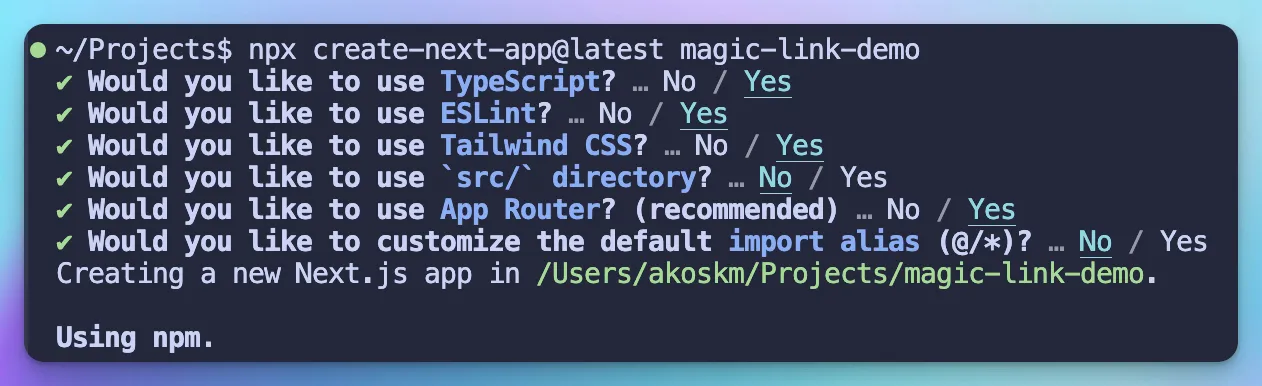
The prompt in that screenshot is from Next.js 14. create-next-app now asks if you want the recommended defaults.
Once this is done, switch to the generated directory cd magic-link-demo and if you're using VSCode, you can reopen the fresh project inside the current editor with this command code . -r.
Go ahead and create a .env.local file because in the next step we'll already put some values in there. Next.js loads .env.local and leaves it out of git.
Supabase
Supabase is a Firebase alternative. It provides a set of APIs that let you access a PostgreSQL database, Auth functionalities, and more.
To get started, head over to supabase.com and create a new project.
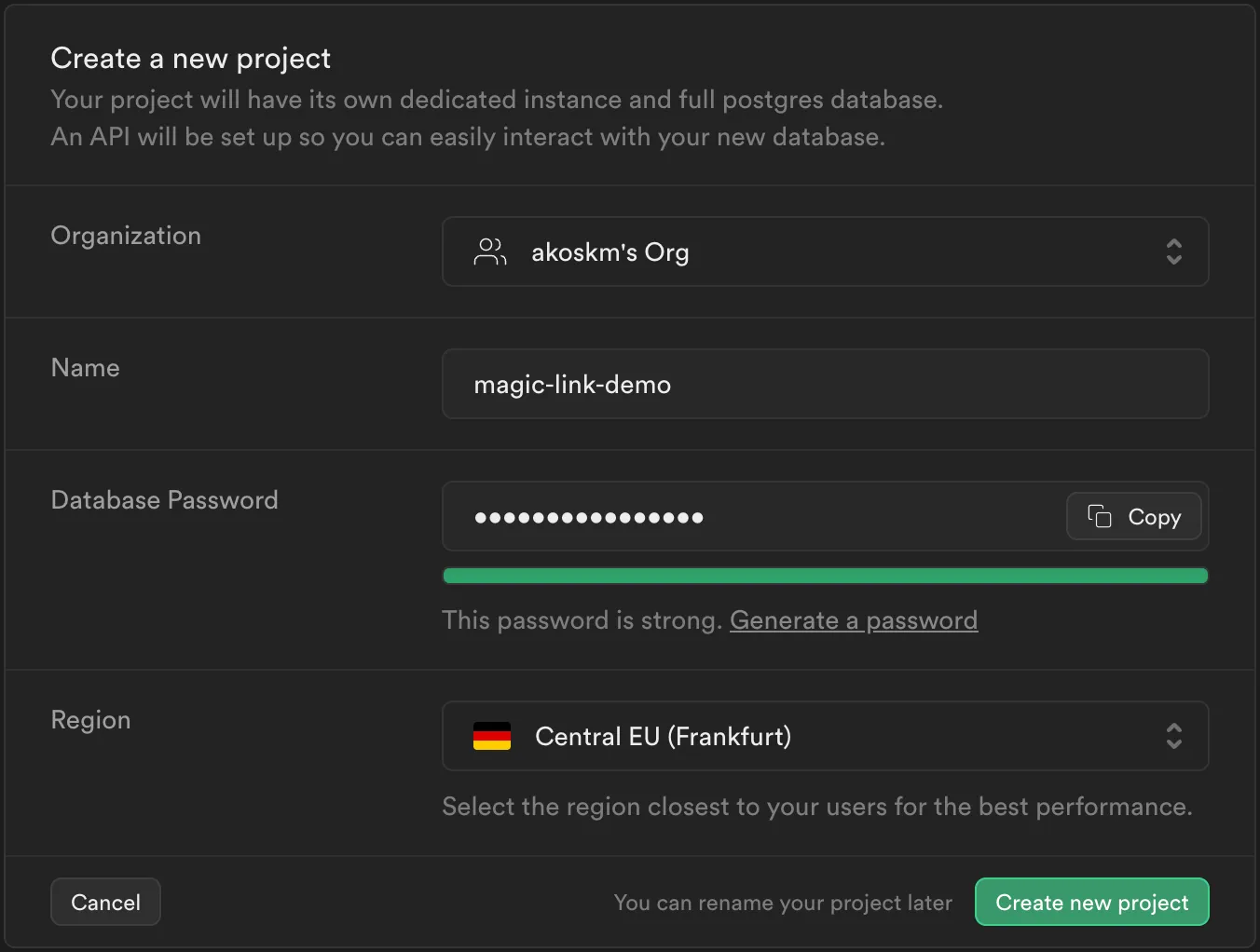
Once your project is created, open the Connect dialog and copy the project URL and the publishable key:
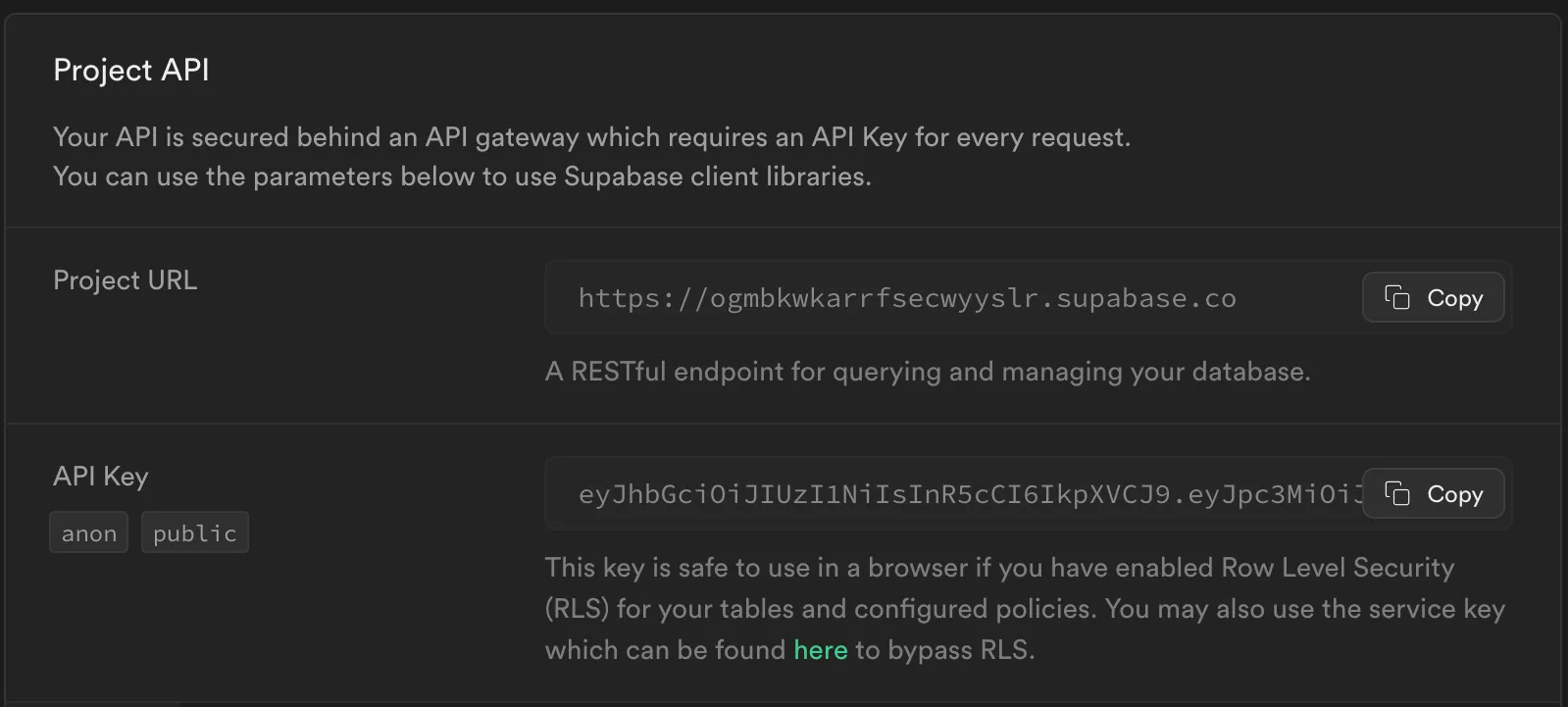
That screenshot still calls the key the anon key, and the snippet uses NEXT_PUBLIC_SUPABASE_ANON_KEY. The Connect dialog on a current project shows the publishable key, a short value that starts with sb_publishable_. Paste it like this:
# .env.local
NEXT_PUBLIC_SUPABASE_URL=<your_supabase_project_url>
NEXT_PUBLIC_SUPABASE_PUBLISHABLE_KEY=<your_supabase_publishable_key>
Then open Authentication > URL Configuration. Set Site URL to http://localhost:3000, and add that same URL under Redirect URLs. signInWithOtp sends emailRedirectTo to Supabase, and Supabase refuses to send the mail if that origin is missing from the list.
Next, in the sidebar, open Authentication > Emails and turn on Enable Custom SMTP:
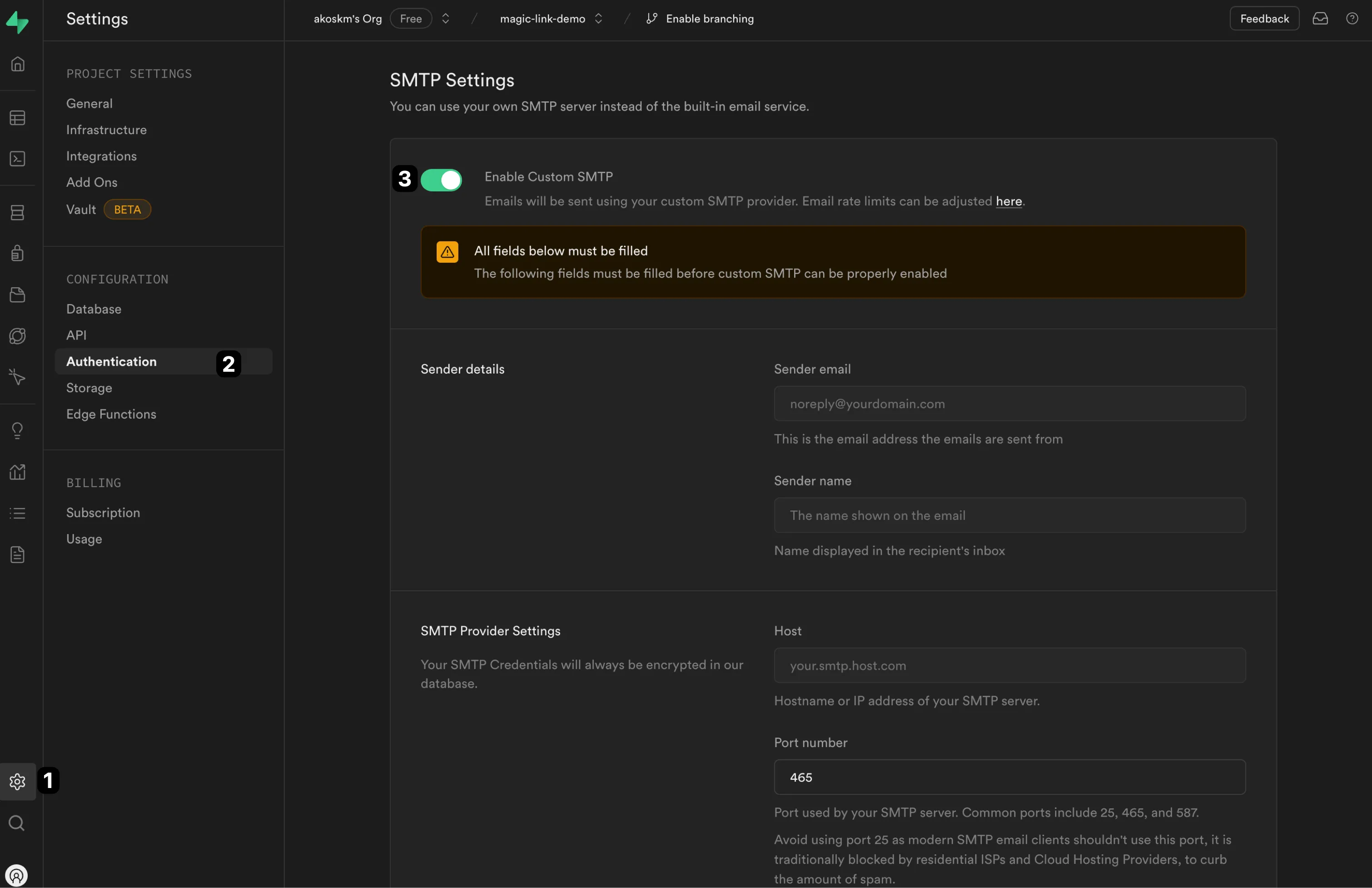
The screenshot still sits under Project Settings > Authentication. The switch moved to Authentication > Emails. It's the same Enable Custom SMTP toggle.
The built-in mailer only delivers to addresses on your project's team, and Supabase documents the cap as 2 emails per hour. That cap can change. A login form burns through it either way.
Let's go to Sendgrid and obtain our SMTP settings.
Sendgrid
SendGrid is a transactional email service that's super easy to use. Head over to sendgrid.com.
Setting up a Single Sender
Expand the sidebar, and under Settings, select Sender Authentication. Follow the steps to configure a Single Sender.
You'll use this sender later in Supabase as a Sender email.
Setting up an API key
Also, in the sidebar, under Settings, select API keys, then Create API key:
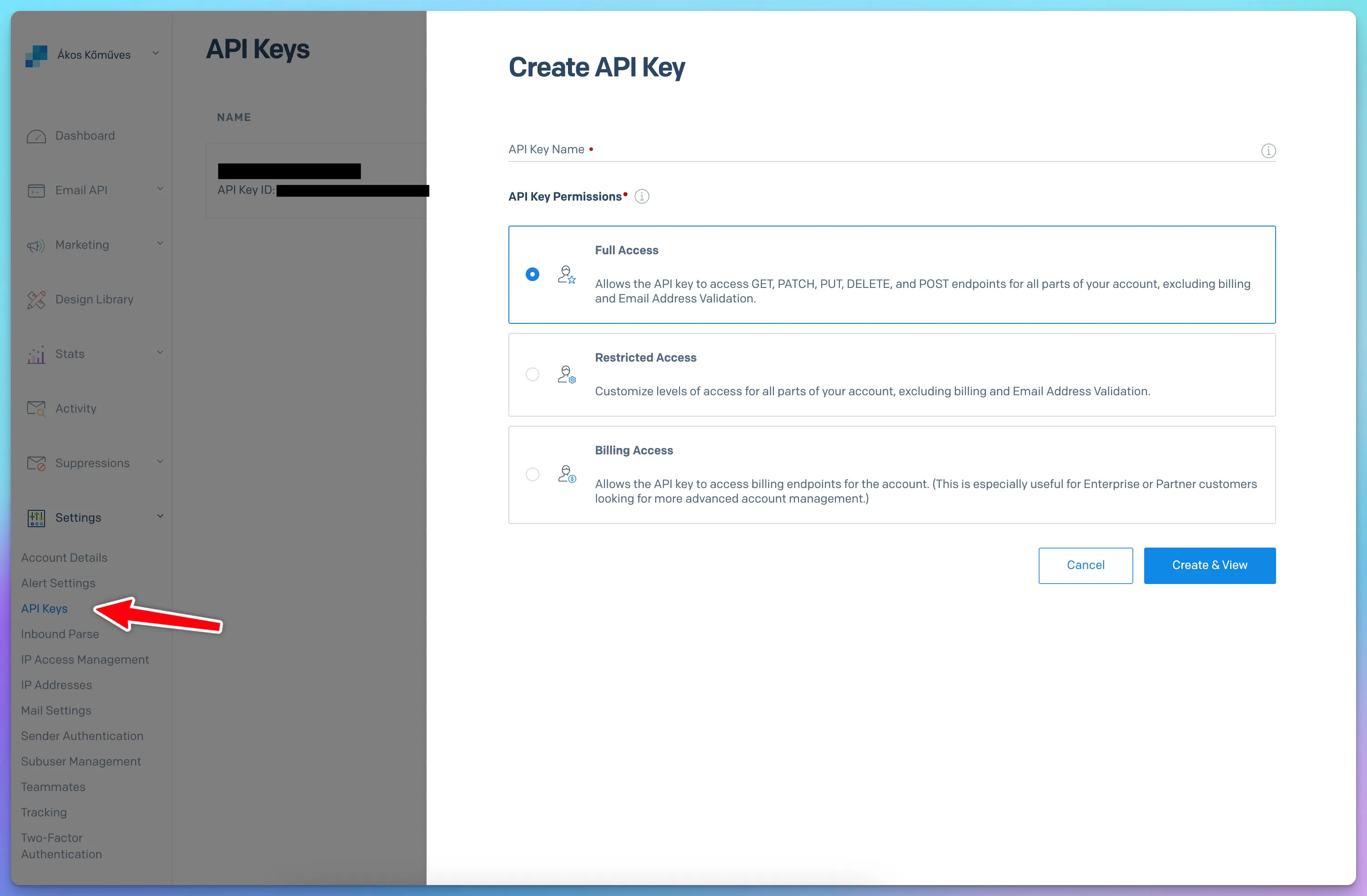
Give the key Mail Send access. Restricted Access with Mail Send turned on is enough, which is what the next screenshot shows.
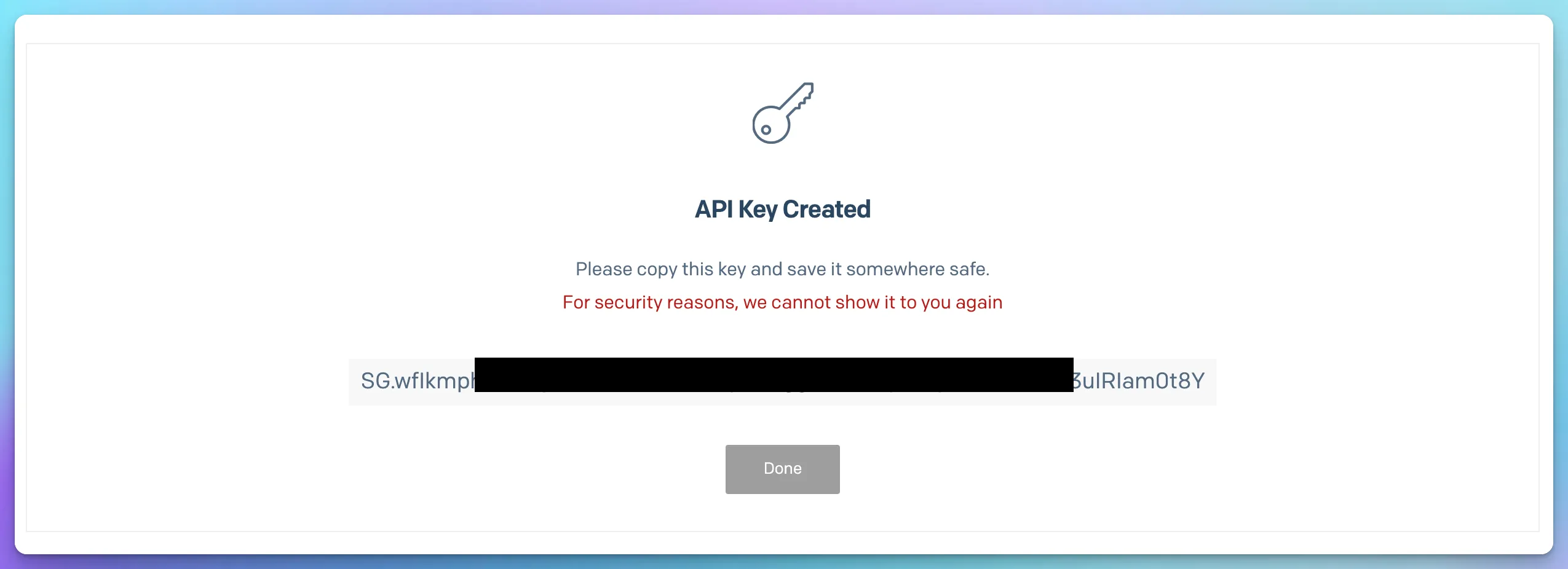
Click Create & View and copy the generated key.
Configuring SMTP in Supabase
Head back to Supabase and paste it under SMTP Provider Settings into the Password field. The Username will be apikey, and the Host should be set to smtp.sendgrid.net. Set the Port number to 587.
This page should contain the up-to-date documentation for using Sendgrid SMTP with your API key.
For the Sender details, use the same email you used to configure the Single Sender identity.
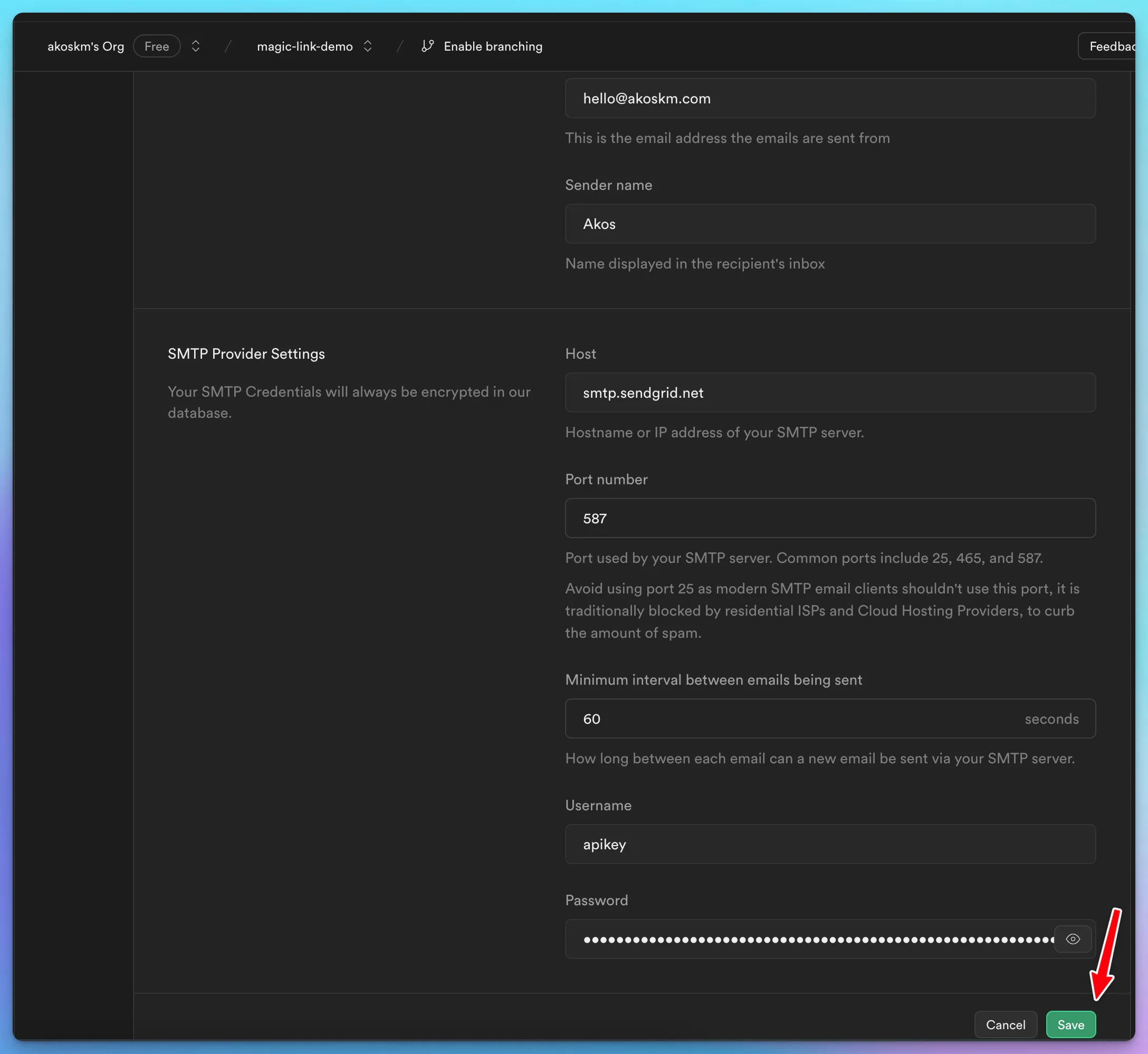
That screenshot is the same form, still framed by the old Project Settings sidebar. Host, port 587, username apikey, and the API key as the password are unchanged.
Once configured, click Save. Supabase will then send to any address, with its own cap of 30 emails per hour. The Rate Limits page under Authentication is where you raise that.
In SendGrid, open Settings > Tracking and turn Click Tracking off. Click tracking rewrites every URL in the message, so token_hash never reaches your confirm route. Supabase calls this out in the email templates guide.
Updating the Auth confirmation path
One last thing you have to do in Supabase. The default link in the auth emails goes to Supabase first, and the session comes back in the URL hash. A Server Component never sees that hash.
This app uses the PKCE flow. The email opens /auth/confirm on your site, and that route trades token_hash for a session with verifyOtp.
Edit the templates on the Email Templates page, linked from Authentication > Emails. In Confirm signup, replace {{ .ConfirmationURL }} with:
{{ .RedirectTo }}/auth/confirm?token_hash={{ .TokenHash }}&type=email
Do the same thing in the Magic link template. Same type=email in both. {{ .ConfirmationURL }} is built with type=email now, and verifyOtp expects that type. {{ .RedirectTo }} is the origin you'll pass as emailRedirectTo in the server action.
The screenshots below still show type=signup and type=magiclink. Paste type=email instead. The old type values don't match the token Supabase puts in the email.
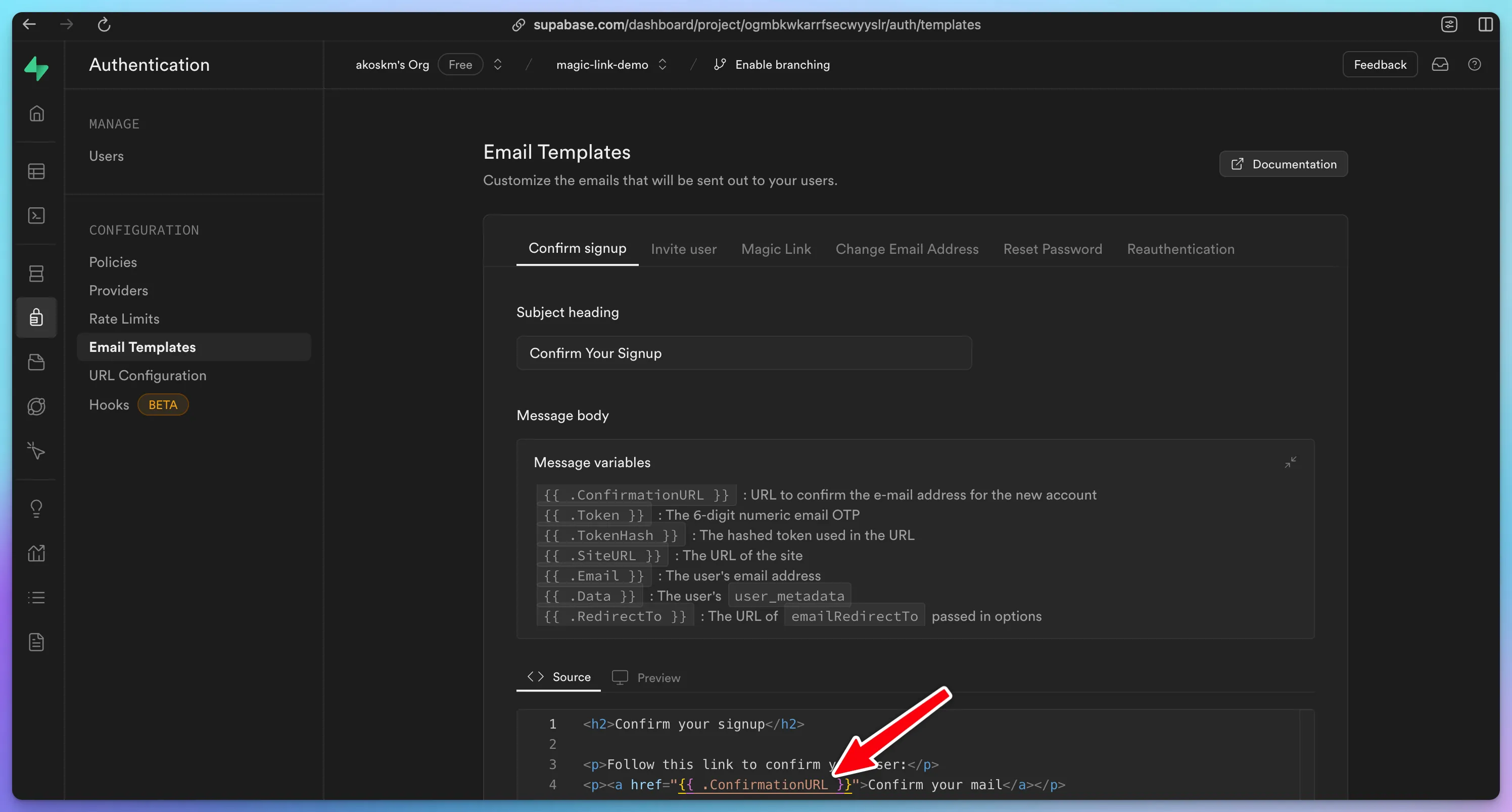
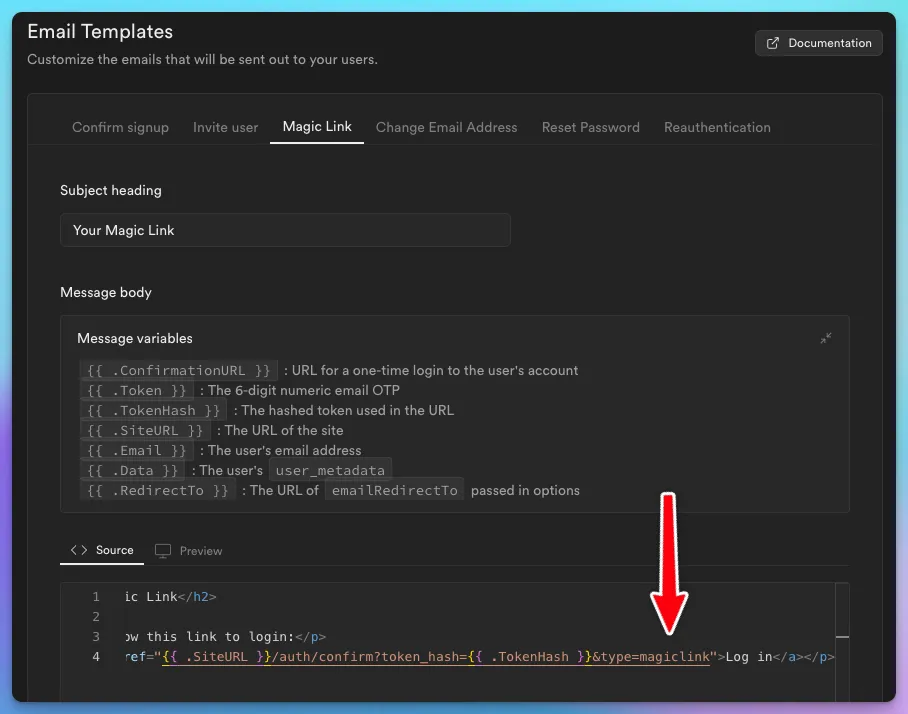
The first sign-in sends the Confirm signup mail. Later sign-ins send the Magic link mail. Both links have to hit /auth/confirm, which is why both templates change.
Let's return to our Next.js project and add a simple Sign-in screen.
daisyUI
For the UI, we'll use daisyUI. create-next-app already installed Tailwind, so you only add daisyUI:
npm install daisyui@latest
npm pkg set browserslist="> 1%"
next dev runs on Turbopack. Without that browserslist, Lightning CSS rewrites daisyUI's styles and the buttons come out unstyled. daisyUI's Next.js install page is where that command comes from.
There is no tailwind.config.js plugin line in a current Tailwind setup. Add the plugin under the Tailwind import in app/globals.css:
@import "tailwindcss";
@plugin "daisyui";
Leave the rest of that file alone.
Magic-link sign-in
Page
Once this is done, create a new file in app/login/page.tsx:
export default async function Login() {
  return (
    <main className="flex min-h-screen flex-col items-center p-24">
      <form className="flex flex-col gap-4 prose">
        <h1>Log in</h1>
        <label className="input input-bordered flex items-center gap-2">
          Email
          <input
            name="email"
            type="text"
            className="grow"
            placeholder="daisy@site.com"
          />
        </label>
        <button className="btn btn-primary">Submit</button>
      </form>
    </main>
  );
}
It's time to take our Next.js app for a spin, type in your terminal:
npm run dev
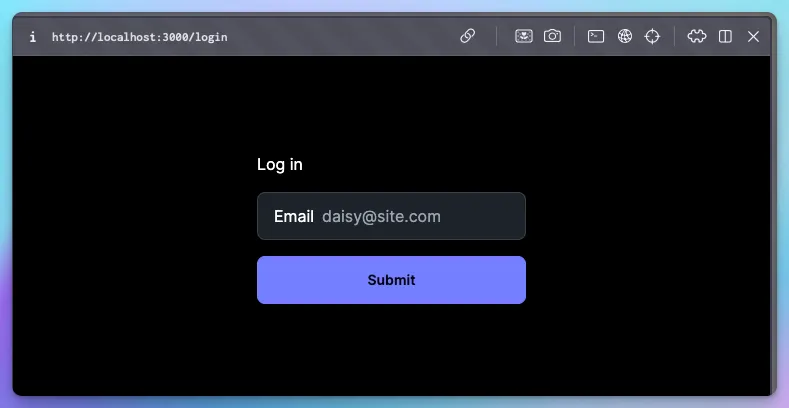
and head over to localhost:3000/login. You should see something like this:
Action
Currently, the Submit button doesn't do anything, so let's implement the server action that will trigger Supabase's sign-in flow for us.
Supabase Client util functions
First, you'll need a function to obtain the Supabase client in your server components. These functions aren't built into Supabase, but they are described in their official docs here.
Before creating the util function, install @supabase/supabase-js and @supabase/ssr:
npm install @supabase/supabase-js @supabase/ssr
And now, create the file utils/supabase/server.ts. This is taken from the docs, but I'll explain what it does below.
import { createServerClient } from '@supabase/ssr'
import { cookies } from 'next/headers'

export async function createClient() {
  const cookieStore = await cookies()

  return createServerClient(
    process.env.NEXT_PUBLIC_SUPABASE_URL!,
    process.env.NEXT_PUBLIC_SUPABASE_PUBLISHABLE_KEY!,
    {
      cookies: {
        getAll() {
          return cookieStore.getAll()
        },
        setAll(cookiesToSet, _headers) {
          try {
            cookiesToSet.forEach(({ name, value, options }) =>
              cookieStore.set(name, value, options)
            )
          } catch {
            // The `setAll` method was called from a Server Component.
            // This can be ignored if you have proxy refreshing
            // user sessions.
          }
        },
      },
    }
  )
}
This util module defines a function createClient that initializes a Supabase client for server-side rendering in a Next.js application. It uses environment variables for the Supabase URL and the publishable key, and it keeps the session in cookies. cookies() from next/headers is async, so createClient is async, and every caller awaits it.
getAll and setAll are the cookie methods @supabase/ssr expects. The older get, set, and remove methods are gone. The try/catch is there because a Server Component can't write cookies. The proxy in the next section does that write.
Session refresh
verifyOtp runs in a Route Handler, so the confirm route can set the session cookie. The access token still expires. Next.js 16 refreshes it in proxy.ts at the project root, next to package.json.
On Next.js 15, name that file middleware.ts and export middleware instead of proxy. Next.js 15 never calls proxy.ts. The Supabase code inside is the same.
This proxy only refreshes the session. The home page already decides what to show when nobody is logged in, so it doesn't redirect strangers to /login.
import { createServerClient } from '@supabase/ssr'
import { NextResponse, type NextRequest } from 'next/server'

export async function proxy(request: NextRequest) {
  let supabaseResponse = NextResponse.next({
    request,
  })

  const supabase = createServerClient(
    process.env.NEXT_PUBLIC_SUPABASE_URL!,
    process.env.NEXT_PUBLIC_SUPABASE_PUBLISHABLE_KEY!,
    {
      cookies: {
        getAll() {
          return request.cookies.getAll()
        },
        setAll(cookiesToSet, headers) {
          cookiesToSet.forEach(({ name, value }) => request.cookies.set(name, value))
          supabaseResponse = NextResponse.next({
            request,
          })
          cookiesToSet.forEach(({ name, value, options }) =>
            supabaseResponse.cookies.set(name, value, options)
          )
          Object.entries(headers).forEach(([key, value]) =>
            supabaseResponse.headers.set(key, value)
          )
        },
      },
    }
  )

  // Do not run code between createServerClient and
  // supabase.auth.getClaims(). A simple mistake could make it very hard to debug
  // issues with users being randomly logged out.
  await supabase.auth.getClaims()

  return supabaseResponse
}

export const config = {
  matcher: [
    '/((?!_next/static|_next/image|favicon.ico|.*\\.(?:svg|png|jpg|jpeg|gif|webp)$).*)',
  ],
}
Return supabaseResponse as it is. If you build a different response, copy the cookies onto it first, or the browser keeps the expired token and the next request signs the user out. The matcher skips images and Next's static files.
getClaims() checks the token. getSession() would trust whatever is in the cookie, so the proxy doesn't call it.
Sign in Action
Inside this Server Action, we'll do three things:
-
obtain a Supabase client we just created
-
read the email from the form and call
signInWithOtp, withemailRedirectToset to the origin the form was submitted from -
if there's an error, log it and redirect to the root page. In production, you might want to redirect to a dedicated /error page
Create a file next to page.tsx, called action.tsx:
"use server";

import { createClient } from "@/utils/supabase/server";
import { headers } from "next/headers";
import { revalidatePath } from "next/cache";
import { redirect } from "next/navigation";

export async function signIn(formData: FormData) {
  const supabase = await createClient();
  const origin = (await headers()).get("origin") ?? "http://localhost:3000";

  const { error } = await supabase.auth.signInWithOtp({
    email: formData.get("email") as string,
    options: {
      emailRedirectTo: origin,
    },
  });

  if (error) {
    console.error("Error logging in:", error.message);
  }

  revalidatePath("/", "layout");
  redirect("/");
}
emailRedirectTo sits inside options. Passing it next to email does nothing. The value has to be on the Redirect URLs list from earlier, and it has to match {{ .RedirectTo }} in the templates. http://localhost:3000 with no trailing slash keeps the confirm link as a single slash: http://localhost:3000/auth/confirm?....
Connect Action to Page
Finally, call this action on the main form element of the login page:
import { signIn } from "./action";

export default async function Login() {
  return (
    <main className="flex min-h-screen flex-col items-center p-24">
      <form action={signIn} className="flex flex-col gap-4 prose">
        ... no changes here
      </form>
    </main>
  )
};
I know it's tempting, but don't test the form submission yet! You would get the email, but the /auth/confirm route the link would redirect to doesn't exist, so let's create that!
Confirmation Route
Let's create a route handler in app/auth/confirm/route.ts.
This processes a GET request to verify an email OTP (one-time password) from Supabase. It extracts the token_hash, type, and next parameters from the request URL. If both token_hash and type are present, it creates a Supabase client and attempts to verify the OTP.
If the verification is successful, it redirects the user to the next URL, removing the token_hash and type parameters. If the verification fails or the parameters are missing, it redirects the user to an error page.
createClient is async here too.
import { type EmailOtpType } from '@supabase/supabase-js'
import { type NextRequest, NextResponse } from 'next/server'

import { createClient } from '@/utils/supabase/server'

export async function GET(request: NextRequest) {
  const { searchParams } = new URL(request.url)
  const token_hash = searchParams.get('token_hash')
  const type = searchParams.get('type') as EmailOtpType | null
  const next = searchParams.get('next') ?? '/'

  const redirectTo = request.nextUrl.clone()
  redirectTo.pathname = next
  redirectTo.searchParams.delete('token_hash')
  redirectTo.searchParams.delete('type')

  if (token_hash && type) {
    const supabase = await createClient()

    const { error } = await supabase.auth.verifyOtp({
      type,
      token_hash,
    })
    if (!error) {
      redirectTo.searchParams.delete('next')
      return NextResponse.redirect(redirectTo)
    }
  }

  // return the user to an error page with some instructions
  redirectTo.pathname = '/error'
  return NextResponse.redirect(redirectTo)
}
We're almost there!
Before we test this, let's just update the root page of our app and render something different when we're logged in!
Authenticated Dashboard
Replace the contents of app/page.tsx with the following:
import { createClient } from "@/utils/supabase/server";
import Link from "next/link";
import { Suspense } from "react";
import { signOut } from "./action";

export default function Home() {
  return (
    <Suspense fallback={<p>Loading...</p>}>
      <Dashboard />
    </Suspense>
  );
}

async function Dashboard() {
  const supabase = await createClient();

  const { data } = await supabase.auth.getUser();
  const isLoggedIn = !!data?.user;

  if (!isLoggedIn) return <Link href="/login">Log in</Link>;

  return (
    <main className="flex flex-col gap-5 items-center justify-between p-24">
      <div className="z-10 w-full max-w-5xl items-center justify-between font-mono text-sm lg:flex">
        Logged in as {data?.user?.email}
      </div>
      <form action={signOut} className="flex flex-col gap-4 prose">
        <button className="btn btn-primary">Log out</button>
      </form>
    </main>
  );
}
Above is a simple Server-Side Rendered page that does the following:
-
checks if the user logged in by simply requesting user from the supabase client
-
if not, returns a link to the
/loginpage -
if logged in, prints the email of the user and a Log out button
The outer Home component is only there because of Cache Components, which create-next-app turns on by default. Reading cookies in the page itself makes Next.js block the route. Dashboard sits under Suspense, and that's the component that calls getUser().
The Log out button will call this simple server action that you can put into app/action.ts:
'use server';

import { createClient } from "@/utils/supabase/server";
import {redirect} from "next/navigation";

export async function signOut() {
  const supabase = await createClient();

  await supabase.auth.signOut();
  redirect("/");
}
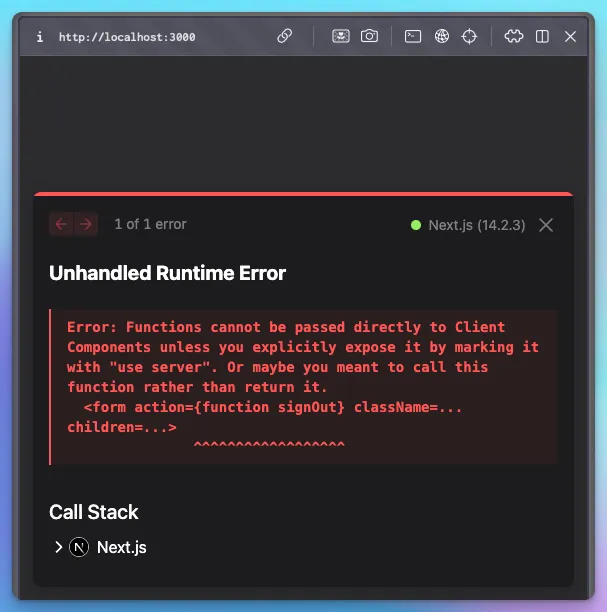
Don't forget 'use server' directive at the top of the file! Otherwise, you'll be getting a message like this in your browser:
Now it's time to test the sign-in!
Open the login page, enter your email address, and click Submit.
⚠️ Note that if you've been testing too intensively, you might get the following error upon sign-in 😅:
Error logging in: Email rate limit exceeded
That message comes from Supabase. After custom SMTP is on, the cap starts at 30 emails per hour, on the Rate Limits page. Wait a few minutes, grab tea and coffee, and try again. 😊
If you've been waiting patiently – or didn't exceed your limit – an email like this will be in your mailbox:
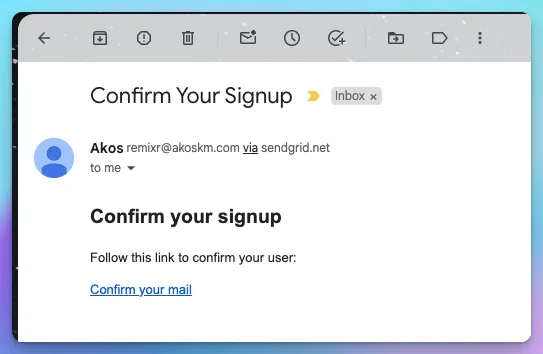
Note that this is our first sign-in, so the email body says Confirm your signup. You'll see soon that it'll look different when we try to sign in for the second time.
Clicking the link or copy-pasting it into your browser should redirect you to the customized dashboard page:
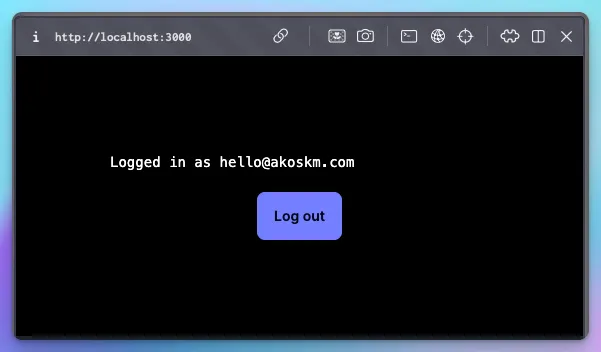
Hitting Log out should take you back to our very simple, unauthenticated page:

And signing in again should send you an email that now looks like this:
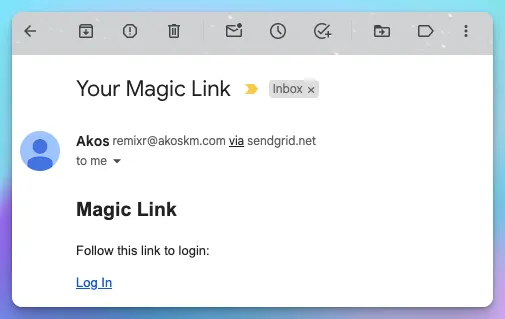
But clicking the link should lead you to the authenticated page, just like after confirming your registration.
Conclusion
Well done! 🎉
You just got yourself a fully functional app with magic-link sign-ins using Next.js, Supabase, and Sendgrid.
If you ask me, I don't think much more is needed here. You have the sign-in and sign-up through the same form and an authenticated and unauthenticated version of a dashboard. What else is needed?
Add a payment system integration and start collecting money for your unique service!
If you'd like to extend your app with some AI features, like taking Voice notes and turning them into blog posts, Building Cloud-Based PWAs with Supabase, React & TypeScript is a great way to start, and you're also supporting my work:
I'm curious about what you come up with! Let me know in the comments! 👇
You'll also find this demo on my GitHub: https://github.com/akoskm/magic-link-demo.
Resources
-
Creating a Supabase client for SSR - https://supabase.com/docs/guides/auth/server-side/creating-a-client?queryGroups=framework&framework=nextjs
-
Passwordless email sign-in - https://supabase.com/docs/guides/auth/auth-email-passwordless
-
Redirect URLs - https://supabase.com/docs/guides/auth/redirect-urls
-
Email templates - https://supabase.com/docs/guides/auth/auth-email-templates
-
Send emails with custom SMTP - https://supabase.com/docs/guides/auth/auth-smtp
-
Twilio Integrating with the SMTP API - https://www.twilio.com/docs/sendgrid/for-developers/sending-email/integrating-with-the-smtp-api