
Start fresh. Migration Assistant copies Homebrew packages you have not opened in years, and the first evening goes to deleting them.
A new MacBook Pro is Apple silicon, on macOS Golden Gate (macOS 27). Install the Xcode command line tools, Homebrew into /opt/homebrew, an ed25519 SSH key stored in the keychain, then Node 24. The shell is still zsh, in Terminal.app. The same lines work in any other terminal that runs zsh.
I bought my first MacBook Pro 13” in 2015, only a few months after I started freelancing full-time. Before that, I mainly used Linux, but thanks to an unfortunate kernel upgrade, I couldn’t work for days for my client. I didn’t lose the client, but I lost a couple hundred dollars. Macs weren’t cheap back then either, but the math was easy: one more downtime like this with my Linux machine, and I lose the price of a MacBook Pro 13” 2014 model.
At that time, I was the only one with a stable (as stable as freelancing gets) job at the table, so I knew I could never let this happen again.
Setting up a new device, whether a phone, a new laptop, or even a watch these days, is always work but also fun - to me, at least. 😅 So this is how I do it now.
Should you migrate or start fresh?
I tried Migration Assistant several times and moved my old setup, but I always regretted it later because of the junk it transferred over.
Due to this, I prefer to start fresh. The last MacBook I owned, a 2018 model with the dreaded touch bar, had been involved in so many projects and had seen so many apps that I wasn’t even sure if I used half of the packages I had installed through Homebrew.
I also don’t work with files that are only on the machine. This might sound strange, but I have nothing that wouldn’t have a copy elsewhere.
Projects are always in sync with GitHub, company documents go to an external drive and into the cloud, and photos - I don’t have pictures on my machine since I started using smartphones - everything is synced up with either Google Photos or iCloud.
This significantly streamlines the process when I transition to a new device. I am confident that I can wipe the contents of my old laptop, install the few applications I use, and simply link my iCloud account on the new machine, and I’m ready to go.
How do you create an SSH key that survives a restart?
Because I’m erasing everything from my old Mac and using SSH keys to connect to GitHub and other services such as DigitalOcean, I like to start by generating a new SSH key and uploading it to these services.
GitHub’s guide is still the one to follow. The key type they want is ed25519, and the file lands at ~/.ssh/id_ed25519.
ssh-keygen -t ed25519 -C "you@example.com"
Accept the default path. Set a passphrase.
Here’s a spoiler: I’m using VS Code. When you’re done generating the key and you open VS Code to pull a repo, this dialog shows up:
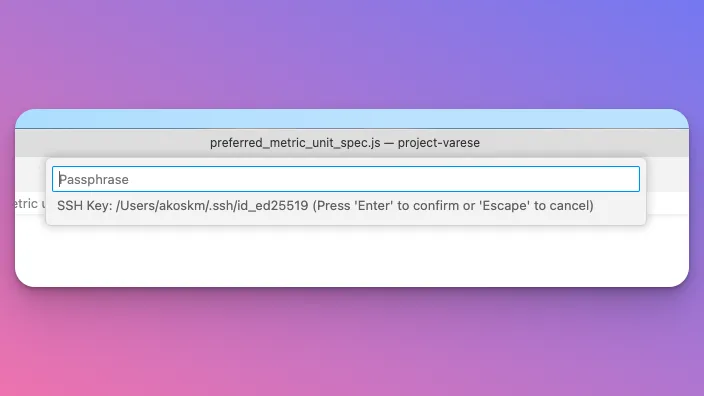
ssh-add ~/.ssh/id_ed25519 clears it until the next restart. I used to redo that whenever the Mac had actually been shut down. The keychain can hold the passphrase, which is the part I was missing when I first wrote this.
Create ~/.ssh/config if it is not there, and add:
Host github.com
  AddKeysToAgent yes
  UseKeychain yes
  IdentityFile ~/.ssh/id_ed25519
Skip the UseKeychain line if the key has no passphrase. Then store the passphrase:
ssh-add --apple-use-keychain ~/.ssh/id_ed25519
That flag belongs to Apple’s ssh-add. If a Homebrew OpenSSH is earlier on your PATH and rejects it, call the system binary:
/usr/bin/ssh-add --apple-use-keychain ~/.ssh/id_ed25519
Copy ~/.ssh/id_ed25519.pub into GitHub, and into DigitalOcean if you still deploy that way. The private file stays on this Mac. The old machine’s key gets removed from those accounts once the new one works, so a wiped laptop is not a backdoor.
Git comes from the Xcode command line tools, not from Homebrew:
xcode-select --install
git --version
That install still gives you git, plus clang and make. brew install git is there when you want a newer git than the one Apple shipped. Check the architecture before you go further:
uname -m          # arm64
node -p "process.arch"   # arm64, after Node is installed
macOS Golden Gate only runs on Apple silicon, and it is the last release with full Rosetta 2. If process.arch prints x64, the terminal is translated. Quit it and open the native one. Current Node builds are arm64. You do not want the Intel ones.
Trials start while the apps are still installing. I put the renewals in SubSub, on the Mac and the iPhone, with no bank login. The site is subsub.app. Nummy is the other app I ship, a nursing tracker for the Watch and the iPhone. It is not part of this setup.
Which apps do I still install?
Brave
I used Firefox for a long, long time because I couldn’t find the level of privacy in any other browser. But it had a cost: some of the codebases I work on are so huge that Firefox Debugger simply can’t handle them. The DevTools freezes, and I must close the tab or restart the browser.
When I started building browser extensions, I wanted them to run in Chrome, and I still didn’t want Chrome’s privacy story. That’s when I noticed Kent C. Dodds using Brave in his screencasts. Once you turn off the VPN, the crypto wallet, and the tips, it is Firefox’s privacy posture with Chrome’s DevTools. The extension setup I still use is the one in How to build Cross-Browser Extensions with Vite, React, and TailwindCSS.
Brave plugins
- Bitwarden. My password manager. Free for personal use, and it is the one I see at companies too. It syncs to the phone without a second brain.
- Grammarly, because I can’t write without it 😅.
- Dark Reader. It builds a dark theme for sites that never shipped one.
Cons of Brave
Sometimes the aggressive privacy settings break a site. Flight check-in, a government portal, an insurance form. That is when I open Safari. Safari’s inspector is better than it was when I wrote this, and the reading list is still the only one that syncs and actually works. For the codebases that froze Firefox, I want Chrome’s DevTools, so Brave stays the daily browser.
Command line tools
xcode-select --install is the first thing I run. It installs git and the compilers Homebrew needs when a bottle is missing. On Apple silicon, Homebrew can install bottled apps without it. Git still comes from here, so I don’t skip the step.
Homebrew
The first thing I used Brave for was to look up how to install Homebrew. I recalled the last time I installed it, I had to fetch and execute a remote script. Totally safe! 😃
The script is the same one, and on this machine it installs to /opt/homebrew:
/bin/bash -c "$(curl -fsSL https://raw.githubusercontent.com/Homebrew/install/HEAD/install.sh)"
Apple silicon does not put that directory on PATH for you. The installer prints the lines. For zsh they are:
echo 'eval "$(/opt/homebrew/bin/brew shellenv)"' >> ~/.zprofile
eval "$(/opt/homebrew/bin/brew shellenv)"
Open a new terminal tab and check:
brew --prefix    # /opt/homebrew
brew --version
Homebrew supports macOS Sequoia through macOS Golden Gate on Apple silicon. If brew is not found, the shellenv line never made it into ~/.zprofile.
Node
I never install Node directly on the machine. Our company works on different projects at the same time, often with different Node versions. I still use nvm for that. The nvm maintainers don’t support a Homebrew install. Use their script, from the install section, then:
nvm install 24
nvm alias default 24
node --version    # v24.x
Node 24 (Krypton) is the LTS line I put on a new Mac. As of 23 October 2026 it is the one nvm install --lts selects. Node 26 is Current and is scheduled to become the Active LTS on 28 October 2026, so I install it only when a repo asks:
nvm install 26
Node 22 stays on maintenance until April 2027. Node 20 is end of life. I don’t put either on a fresh machine unless a client repo pins them.
nvm reads .nvmrc. It also makes zsh a little slower to start. When that bothers me I use fnm, which is a single binary and installs with Homebrew:
brew install fnm
Add this to ~/.zshrc:
eval "$(fnm env --use-on-cd --shell zsh)"
Then:
fnm install 24
fnm default 24
--use-on-cd switches versions from .nvmrc or .node-version when you cd into the repo. Same job as nvm, faster startup.
I compared Node with Bun and Deno in How to Run TypeScript in 2025. For client work I still want Node on the machine, because that is what those repos run in CI.
VS Code
I couldn’t run IntelliJ IDEA on the previous project I worked on (it’s an 8GB Git repo 😬), so I was kind of stuck with VS Code.
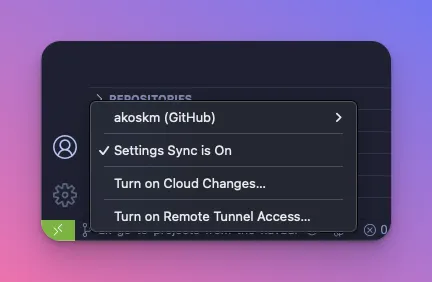
IntelliJ IDEA is a much more professional IDE in many respects, but since I couldn’t run it, I gradually discovered alternatives to my IntelliJ workflows in VS Code. VS Code is still what I install on day one. Sign in with GitHub and Settings Sync puts the extensions back:
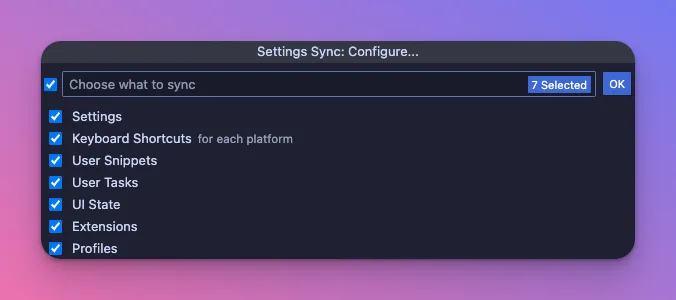
The command palette is still ⌘⇧P. Type sync configure and tick what should sync. The checkboxes have moved around since this screenshot. The command name still finds them.
When the editor needs an agent, I open Cursor. The palette shortcut is the same. One workflow I use there is written up in How to Use Cursor Commands to Write JIRA Ticket Descriptions.
Figma
I’m using Figma for the same jobs as before:
- visuals for blog posts and social posts
- wireframes for clients
- FigJam for brainstorming and mind maps
The Adobe acquisition did not happen. Adobe dropped the deal in 2023, Figma stayed independent, and I never had to go looking for a replacement.
Docker Desktop
Every full-stack developer must have this companion app. If you ever need to run five different versions of PostgreSQL for five distinct client projects, it’s just so much easier to accomplish with Docker.
Docker Desktop still ships a native Apple silicon build. It is heavy. The desktop app earns the memory when I want the list of containers, images, and volumes, and the logs, without reaching for the CLI every time. You can run the engine without the desktop app. I still install the app.
Discord and Slack
My go-to apps for client and company communication. Clients mostly use Slack, which I’m not a big fan of, but internally we use Discord, that’s much better.
I have the badge and the sound turned off for both, so they never interrupt the work.
Which apps do I skip?
Sometimes I feel I’m doing something wrong. Especially when you ask others what’s the first app you would install, and 100 people recommend an app you never even heard about 😃
I asked that question on X. The replies are from 2023. I still skip those apps.
Spotlight alternatives
Spotlight is the thing you open with ⌘Space, and you can use it to search your files, apps, or whatever. Alfred and Raycast still come up every time someone posts a setup thread.
I’m not using Spotlight that much. I never used it to find files on my machine, and I rarely used it to open apps.
Maybe because I never turn off my Mac. I simply close the lid or let it go to sleep. Brave, Visual Studio Code, Spotify, Slack, and Discord are already open. I get to them with a three-finger swipe up on the trackpad.
The files I open are project files, and I open those from VS Code. Company documents and PDFs live in Files. That is a rare trip.
Chrome
As I pointed out earlier, I never was a big fan of Chrome.
Safari is the browser I want for personal stuff, because of how it sits next to the iPhone. For the work, Brave is the one that stays open. I don’t install Chrome beside it.
FAQ
Should I use Migration Assistant on a new MacBook Pro?
Skip it. It copies Homebrew packages and app junk from the old machine. Start fresh, then clone your repos from GitHub.
How do I keep a GitHub SSH key loaded after a restart?
Generate an ed25519 key, add UseKeychain yes under Host github.com in ~/.ssh/config, then run ssh-add —apple-use-keychain ~/.ssh/id_ed25519. Use /usr/bin/ssh-add if another ssh-add rejects the flag.
Should I install Node with nvm or fnm on Apple silicon?
nvm still works, and it reads an .nvmrc. Install Node 24, the LTS line, with nvm install 24. fnm is the faster alternative: brew install fnm, then fnm install 24.
Does Homebrew still work on macOS Golden Gate?
Yes. On Apple silicon the prefix is /opt/homebrew, and macOS Golden Gate is a supported version. Add brew shellenv to ~/.zprofile or the brew command will not be found.
This is my guide for setting up a new MacBook Pro as a full-stack developer. I prefer to keep things simple. Install the tools above and start working.
Enjoy your new machine!
Ákos